

Have you scheduled a Microsoft 365 Copilot prompt yet?
Most people use Microsoft 365 Copilot reactively. They open Copilot when they need help with a task, ask a question, get an answer and move on.
But what if Copilot could start working before you even begin your day?
That’s exactly what scheduled prompts are designed to do. Microsoft allows you to create a prompt once and schedule it to run automatically at a time and frequency that suits you, helping you stay organised without having to remember to ask the same questions every day.
A Prompt Worth Trying
One of our favourite examples is:
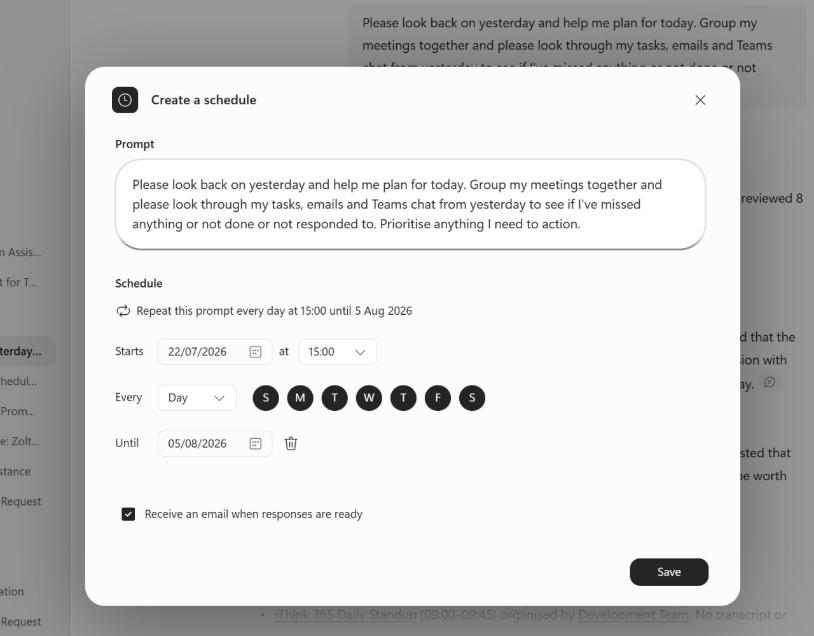
“Please look back on yesterday and help me plan for today. Group my meetings together and please look through my tasks, emails and Teams chat from yesterday to see if I’ve missed anything or not done or not responded to. Prioritise anything I need to action.”
This prompt gives you a morning briefing based on your own Microsoft 365 data, helping you start the day with a clear understanding of what’s important. A very similar example is already being used and demonstrated internally at iThink 365 because of the value it provides.
Why It’s Useful
It is surprisingly easy for things to slip through the cracks. A Teams message arrives while you’re in a meeting, an email gets buried in your inbox, or a task is forgotten after a busy afternoon.
A scheduled Copilot prompt acts like a personal assistant, reviewing information across your Microsoft 365 environment and bringing the important items back to your attention. Microsoft’s own examples include using scheduled prompts to surface follow-ups, summarise meetings and highlight outstanding actions.
The result is:
- Fewer missed actions
- Better visibility of priorities
- Less time spent searching through emails and chats
- A more organised start to the day
Tailor It to Your Role
The best part is that you don’t have to use the prompt exactly as written.
You can ask Copilot to help improve and refine it based on your role, responsibilities and working style.
For example:
- Project managers may want updates on project actions and deadlines.
- Sales teams may want outstanding customer emails highlighted.
- Marketing teams may want reminders about upcoming campaigns, events and content deadlines.
- Managers may want a summary of conversations, approvals or follow-ups from their team.
Simply tell Copilot what you do and ask it to enhance the prompt for your specific role.
Set It Up Once
A lot of people assume they need to run these prompts manually every day.
You don’t.
Once you’ve created and scheduled a prompt, Copilot can run it automatically on a schedule you choose. You can have it delivered daily, weekly or at other recurring intervals, and you can choose to receive an email notification when the response is ready.
In other words, you set it up once and Copilot keeps doing the work for you.
How It Saves Time
Think about how many minutes you spend each morning:
- Checking your calendar
- Reviewing emails
- Looking through Teams messages
- Checking tasks
- Working out what needs your attention first
Individually those activities don’t take long, but they add up.
A scheduled prompt brings that information together into a single summary, helping you focus on action rather than administration. Instead of spending time gathering information, you can spend your time getting work done.
If you’ve not tried scheduled prompts yet, this is a great place to start. Create the prompt, schedule it once, and let Copilot help you arrive at work already prepared for the day ahead.
Want more practical Microsoft 365 and Copilot tips like this? Follow iThink 365 for straightforward advice, real-world use cases and simple ways to get more value from the tools you’re already paying for!